

Notifications tell you what is happening on your account: a new invoice, a reply on a ticket, an update on your project. They appear in two places, and this explains how to read and manage them.
Two places, not one
The bell at the top of the page shows the latest ones quickly. The notifications page shows all of them, with filters.
Step one: the bell at the top of the page
There is a bell at the top of your control panel. The small number on it is how many you have not read. Click it for a quick list of the most recent.
Step two: open the notifications page
To see everything, open the notifications page. You get the full list, with three filter buttons above it: all, unread, and read.
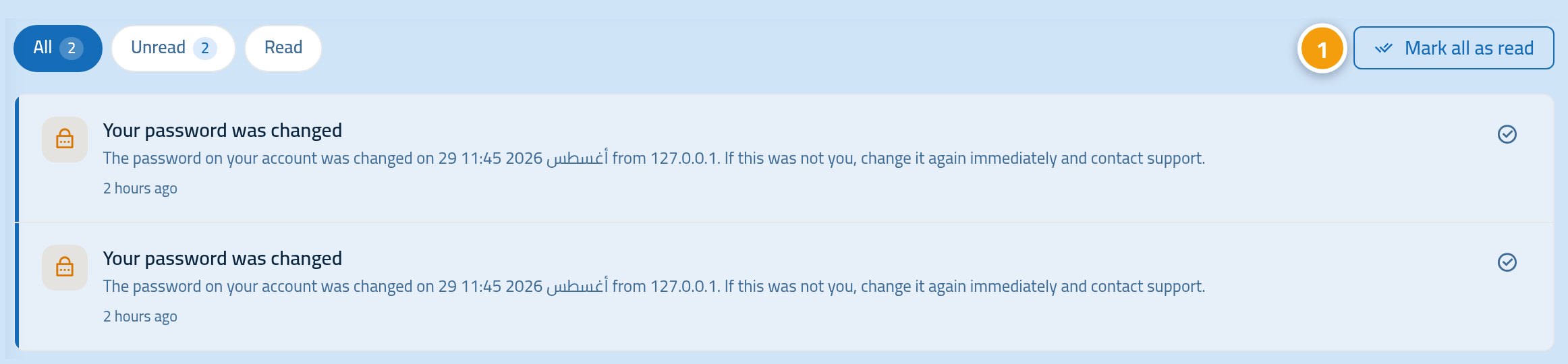
Step three: mark what you have read
Each notification can be marked as read, or put back to unread. If you have a lot, press Mark all as read once.
Why mark them?
The number on the bell counts unread ones only. Marking off what you have finished keeps that number meaning something.
What arrives as a notification?
- Invoices: when a new one is issued or its due date is near.
- Tickets: when support replies to yours or its status changes.
- Projects and services: important updates on what we are building for you.
- Account: security changes such as a password change or two-factor being turned on.
Notifications do not replace e-mail
Important messages such as invoices are sent to your e-mail as well. Notifications complement your inbox rather than replacing it.
Worth knowing
- Clicking a notification takes you straight to the page it is about.
- The "unread" filter is the quickest way to see what you missed.
- Marking one as read does not delete it; it stays under "read".
- If expected notifications are not arriving, check the e-mail on your account is correct.
Next step
Make sure your e-mail and phone are up to date so the important alerts reach you.